
Written by students at the University of St Andrews, as part of the Summer Teams Enterprise Programme (STEP) 2025
iNaturalist Guide
iNaturalist is a citizen science app dedicated to helping others learn more about biodiversity and the wildlife around them. Users can submit their own observations of species which help scientists research the distribution of biodiversity around the world. We will be using iNaturalist in this Arctic BioBlitz for efficient recording of species that are uploaded to a wider network for scientific research and conservation.
Through your observations, you will record:
- The Name of a Species
- Date and time observed
- Location in coordinates (It’s possible to find these in iNaturalist) or as close as you can identify
- Number of the species seen – try to avoid repeat observations!
- Any extra notes
How to Set Up an Account:
1
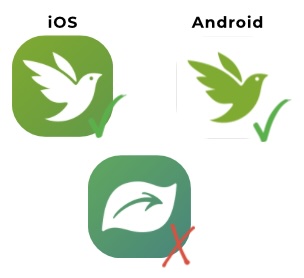
Download the iNaturalist app on iOS/Google Play, NOT Seek by iNaturalist or iNaturalist Classic
2
Click “Sign up now!”
3
Create a new account and unique username with your email address and password.
4
You have now created your iNaturalist account!
5
Navigate to ‘More’ on the homepage, or in the side tab. Click on Projects and search for ‘Pan-Arctic BioBlitz 2026′. Click ‘Join’ to make sure your observations are featured in this year’s BioBlitz
6
Make sure iNaturalist has access to your device’s location, to provide accurate observations in the field!
How to Log Observations:
1
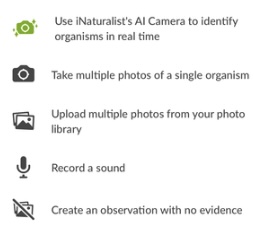
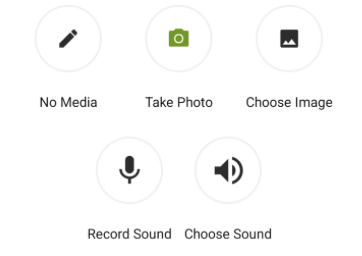
1) To record your first iNaturalist observation, hold the camera icon at the bottom of the screen on iOS, or the green “+” button on the bottom right on Android.


2
Next, decide which kind of observation you will make (photo or sound)
3
3) For photo observations, take sharp, in-focus and clear photo of the full specimen.
If possible, take multiple close-up photos to ensure you have at least one good quality photograph
4
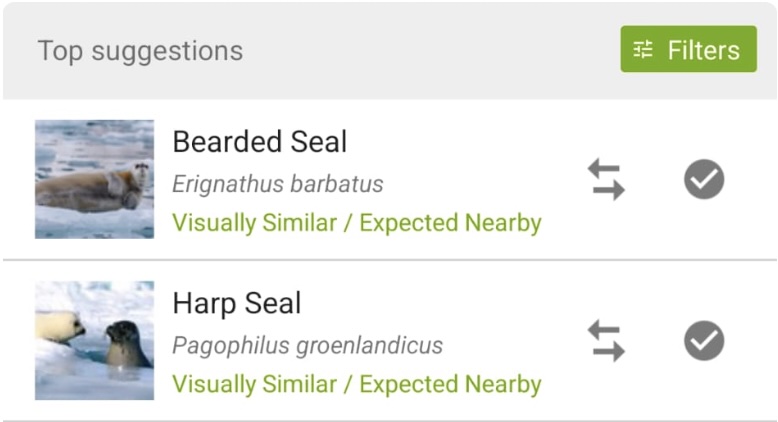
4) Within your observation, you can use iNaturalist’s computer vision model to identify the species based on your image, by viewing suggestions.
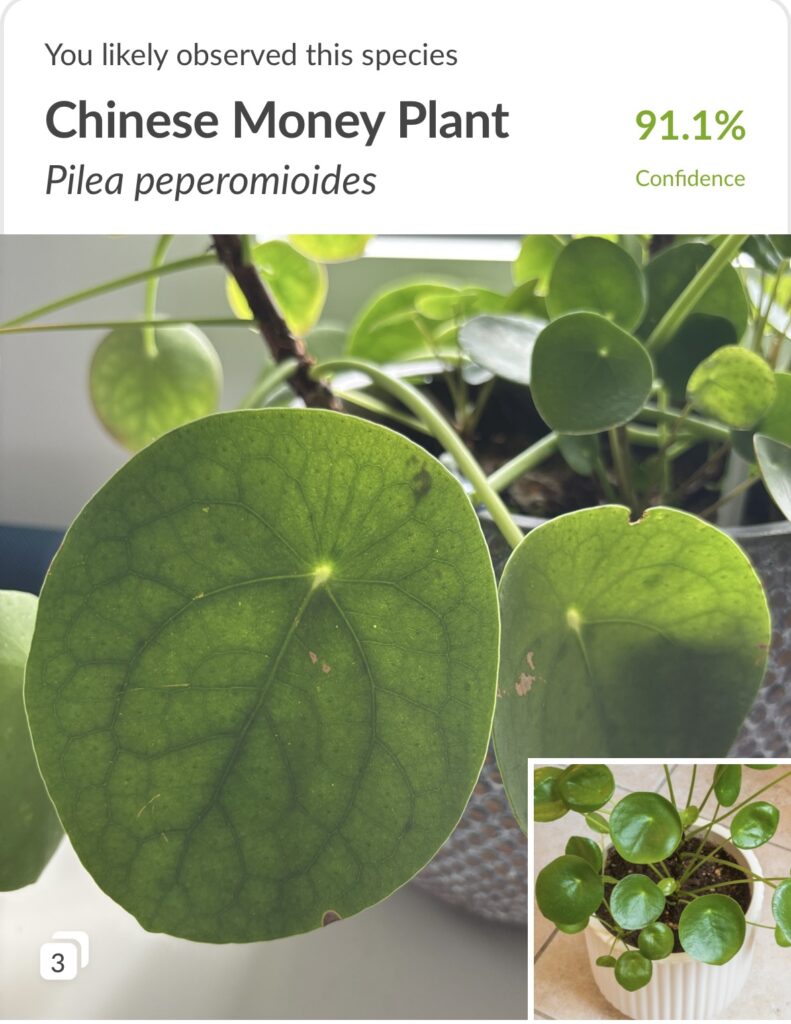
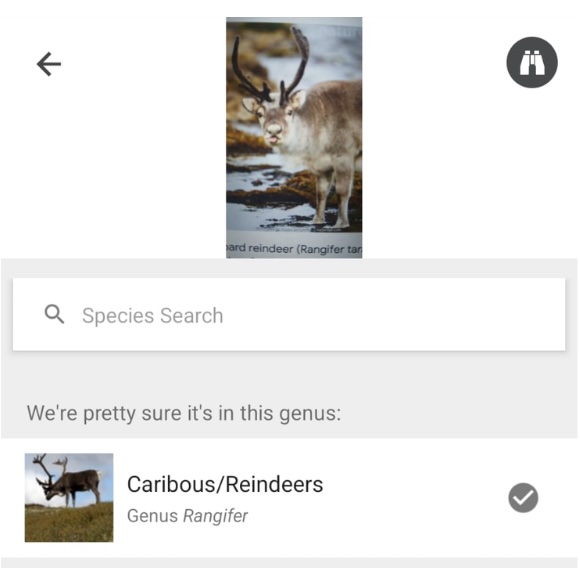
Or scroll down to view alternative suggestions if you aren’t confident in iNaturalist’s initial suggestion.

5
Make sure to also select a date and time, and GPS location!


6
6) When you are happy with your observation, upload by clicking the green “Share” button (iOS) or “✓” (Android) –


and hooray you’ve added your first Arctic BioBlitz observation on iNaturalist!
Other users can now verify your observation to make it research-grade.
Please note that iNaturalist IOS interface will differ from Android